Enterprise
Make your own Format
A hands-on guide for producers. Find a Format, fork your own copy, change it by chatting with the agent, check it, publish it, and use it in chat or from your backend.
This guide follows one Format through its whole life in the Sume app, the way a producer works with it: find it, make your own copy, change it with the agent, check it, publish it, and use it. You don't write any code until the last section, and even there it is one short request.
The screenshots and clips come from the Sume app and use sample Formats from the Sume team. The example is a product still: a cream jar called "Calm Balm".
What a Format is
A Format is a saved recipe for one kind of output. It holds the look, the rules and the steps the agent follows every time. One example is "a 1:1 product still with a cream squeeze on a soft pastel backdrop". You give it your input (a product photo, a link, a line of text) and it makes the same kind of result each time, so you don't have to write the long prompt again.

There are two kinds:
| Kind | Who makes it | What you can do |
|---|---|---|
| Sume Format | Sume. Marked with a Sume tag. | Use it as it is. Sume keeps it up to date. |
| Team Format | Your team. Marked with a Team tag. | Use it, fork it, and (with edit access) change and publish new versions. |
A team Format belongs to your workspace. Everyone in the workspace can use it, and people who can edit Formats can change it.
Find and preview Formats
Formats are in the Agents app, in two places.
The Formats page. Open Formats in the left sidebar. The page opens on Your formats: the Formats you made or that were shared with you. Type in Search formats to narrow the list.
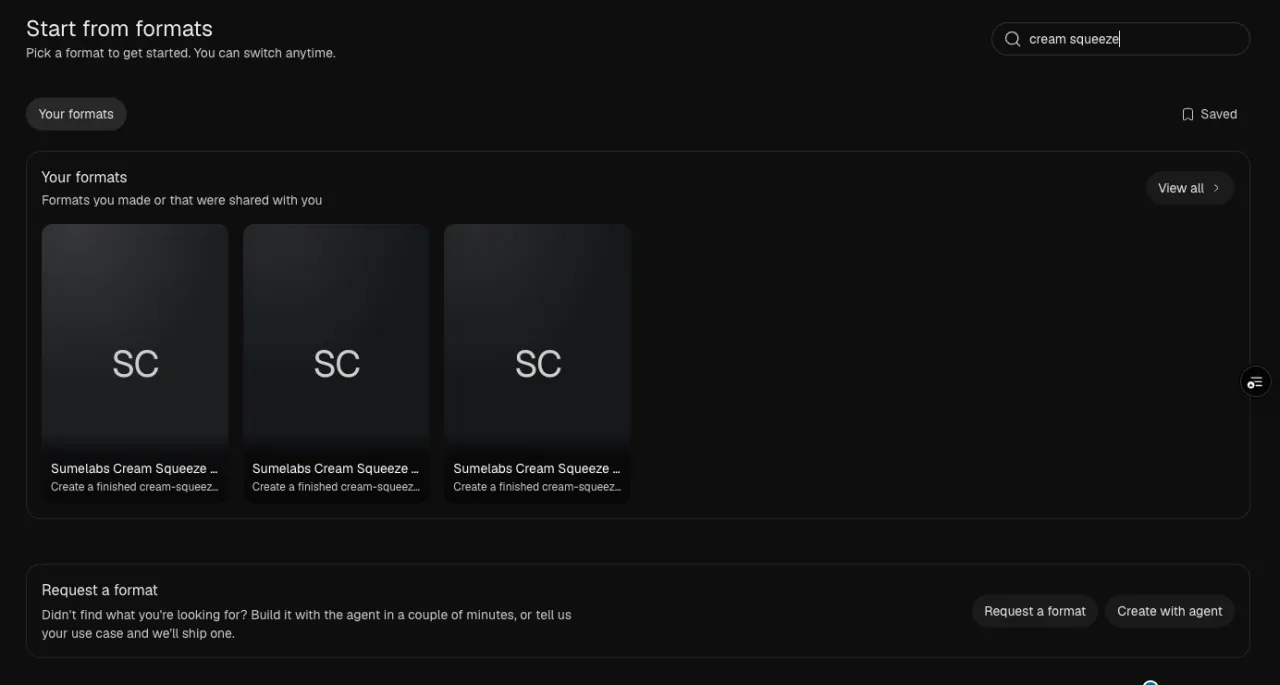
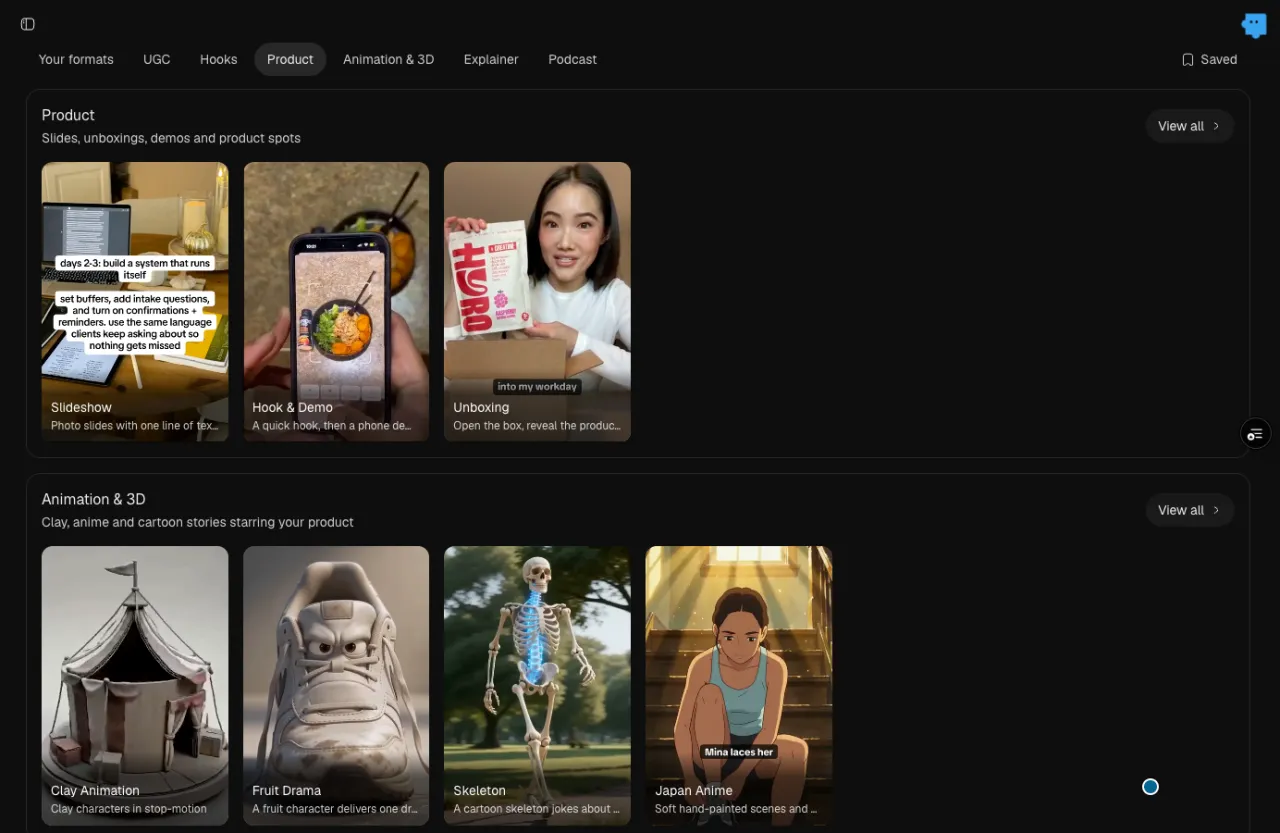
The tabs at the top (UGC, Hooks, Product, …) jump to Sume's Formats, grouped by kind. Their cards say Recreate.
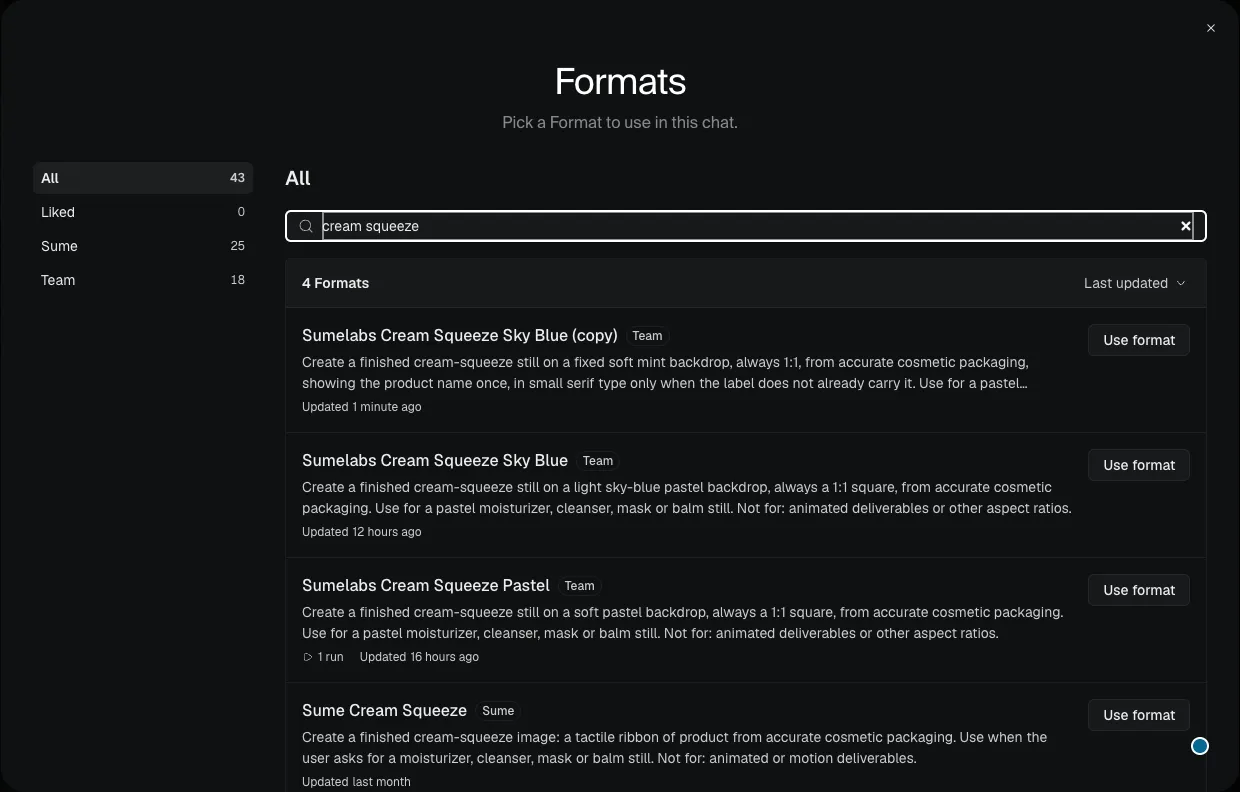
The Formats button in chat. Under the message box, Formats opens the same list as a window, with filters for All, Liked, Sume and Team. It's the quickest way to pick a Format for the chat you are in.
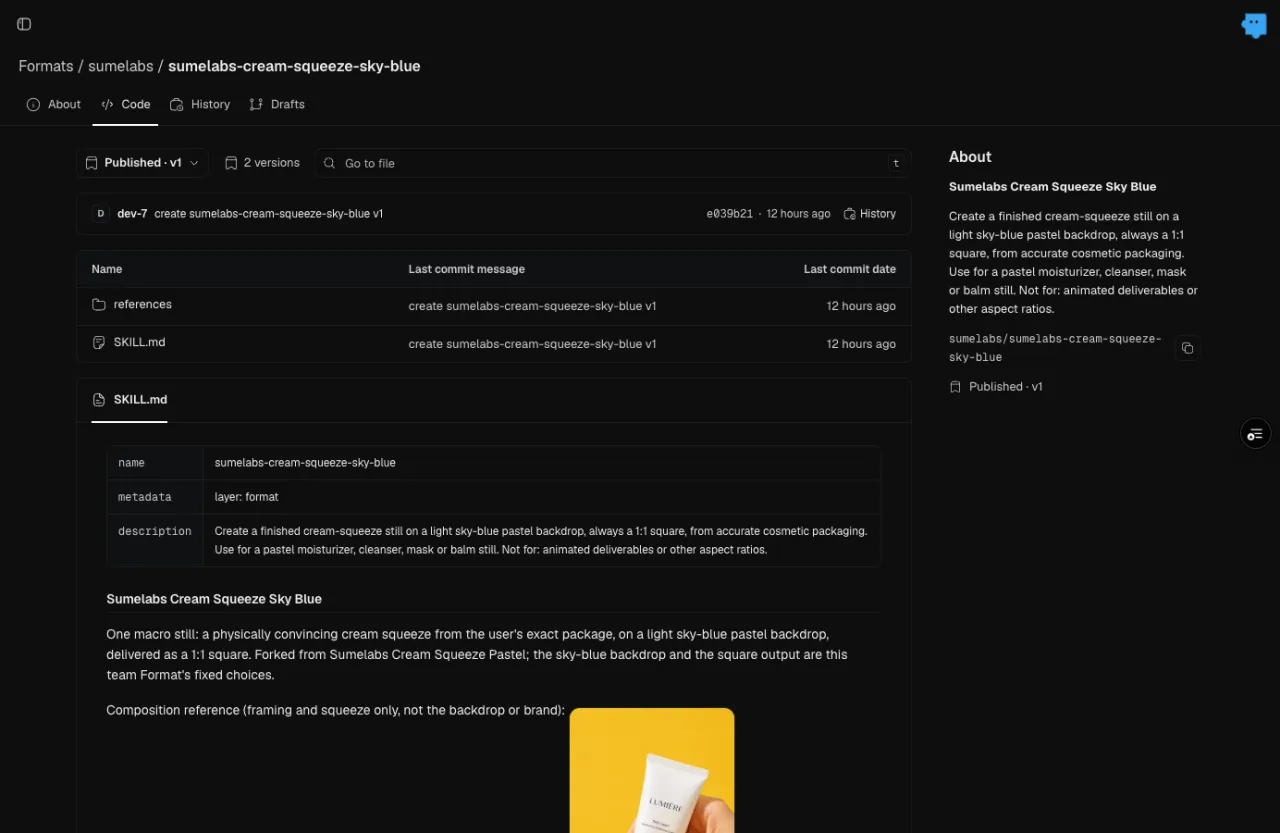
Click a card to preview it. A window opens with what the Format makes and what it is not for, Use this format, a like button and a fork button. Its side menu has About, Access, Requests, Code and Drafts. Code opens the Format's own page, with four tabs:
- About: what the Format makes, its id and its published version.
- Code: the files behind it.
SKILL.mdis the main recipe andreferences/holds the detailed rules. You don't edit these by hand; the agent does it for you (see below). - History: every saved change, newest first.
- Drafts (team Formats): proposed changes that are not published yet.
Fork: make your own copy
Fork makes your own copy of a team Format that you can change freely. On the Formats page, point at a card and click its fork icon (or use the fork button in the preview window). A message says Fork saved to My Formats, and the copy appears in Your formats as "… (copy)".
What stays linked and what doesn't:
- The copy starts as an exact copy of the original's published version.
- After that they are separate. Changes to your copy never touch the original, and new versions of the original don't flow into your copy.
- Sume records which Format and version the copy came from.
You can't fork Sume's own Formats from the Formats page. Their cards offer Recreate, which starts a chat with that Format.
Change it by chatting with the agent
Open a chat, pick your copy with Formats (or Use this format in its preview), and say what you want changed in plain words. Good requests name one or two concrete things and what must stay the same:
- Background: "Make the backdrop a soft mint, always the same tone."
- Caption style: "Add the product name once, small, in a serif font, centered at the bottom."
- Tone: "Keep the lighting softer and warmer, less contrast."
- Duration (video Formats): "Make the finished video 20 seconds, not 30."
- Scenes (video Formats): "Open with a close-up of the product before the host appears."
The agent never changes the published Format by itself. It writes your change as a draft, a proposed version that sits next to the published one, runs the free check, tells you what changed, and asks before it publishes. Until someone publishes the draft, every run of the Format keeps using the published version.
To review the change on the Format's page first, add "Don't publish yet, open it as a draft on the Format." The agent then lists the files it changed and opens the draft under the Format's Drafts tab.
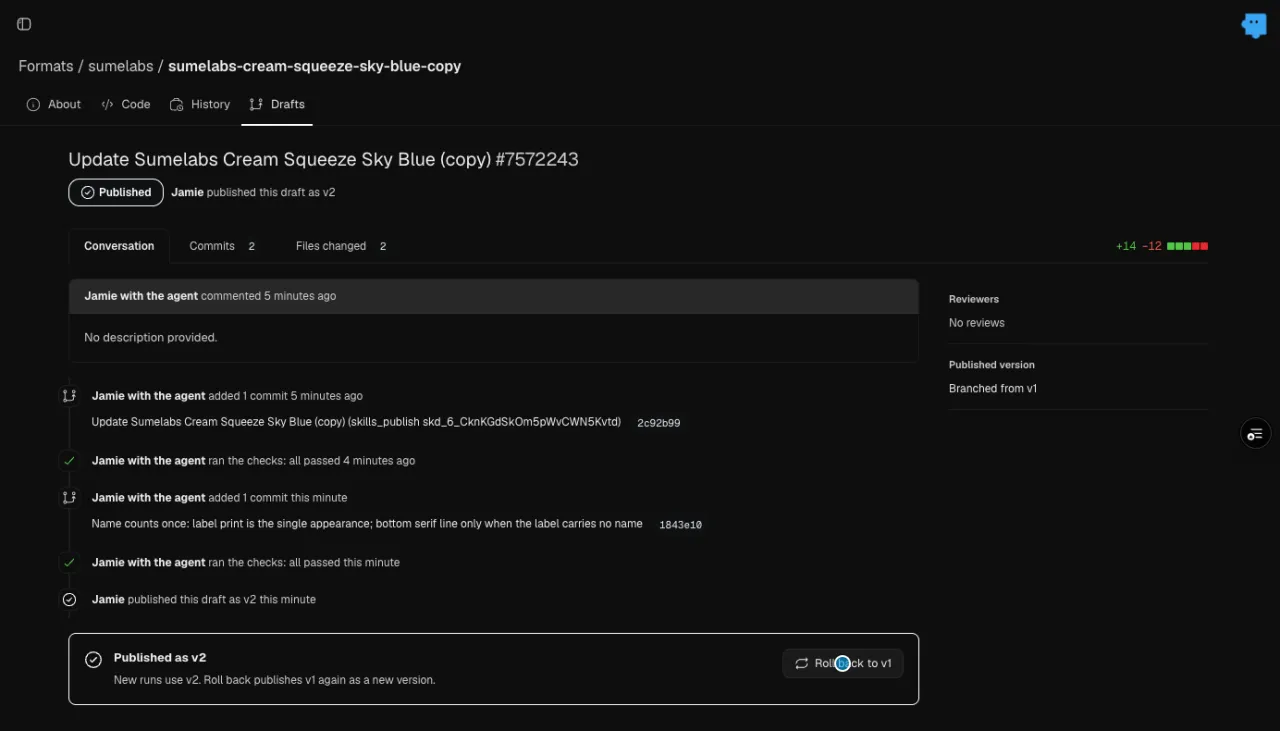
To see exactly what changed, open the Format's Drafts tab and click the draft. Files changed shows each edited file, with removed lines in red and added lines in green.
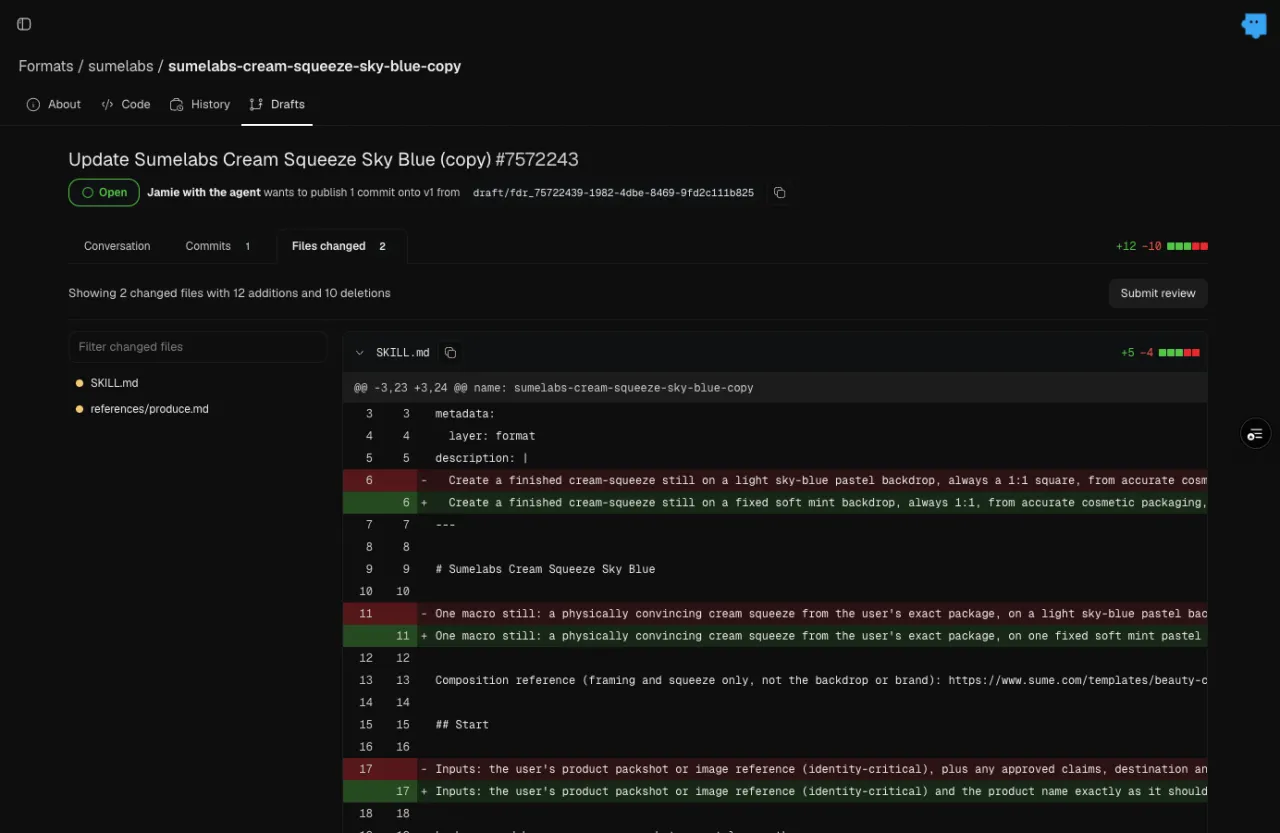
You can keep asking for changes in the same chat. Each one is added to the same draft as a new commit.
Check it before you publish
The check is free. The agent runs it after every change, and you can run it again yourself with Run checks on the draft's Conversation tab. It confirms that:
- the package is a valid Format,
- no file is too large or holds a key,
- locked parts (rules your team marked as fixed) are unchanged,
- the draft is up to date with the published version.
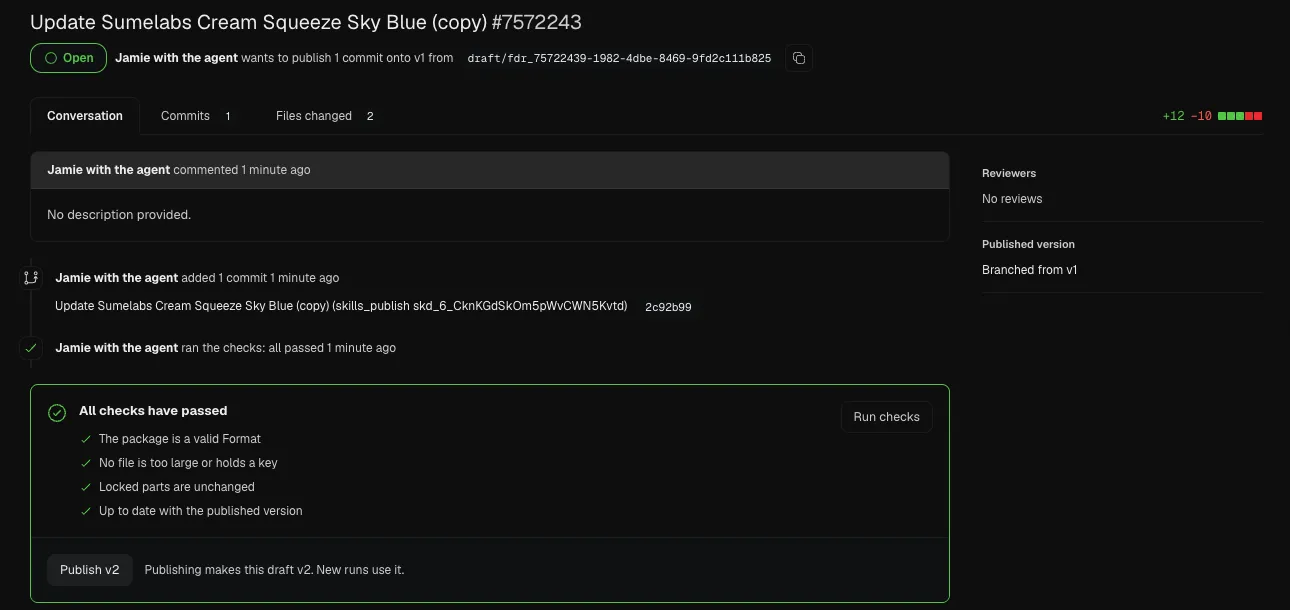
One cheap test generation is for when you want to see real output first. Attach a product photo and ask, for example, "Before I publish, make one test image with the draft at the cheapest settings." The agent runs one normal generation that follows the draft's files and tells you what it cost (here $0.04). The result shows in the chat, and it is billed and listed like any other generation in your workspace. There is no separate test button: the check is the test, and real output is one normal generation.
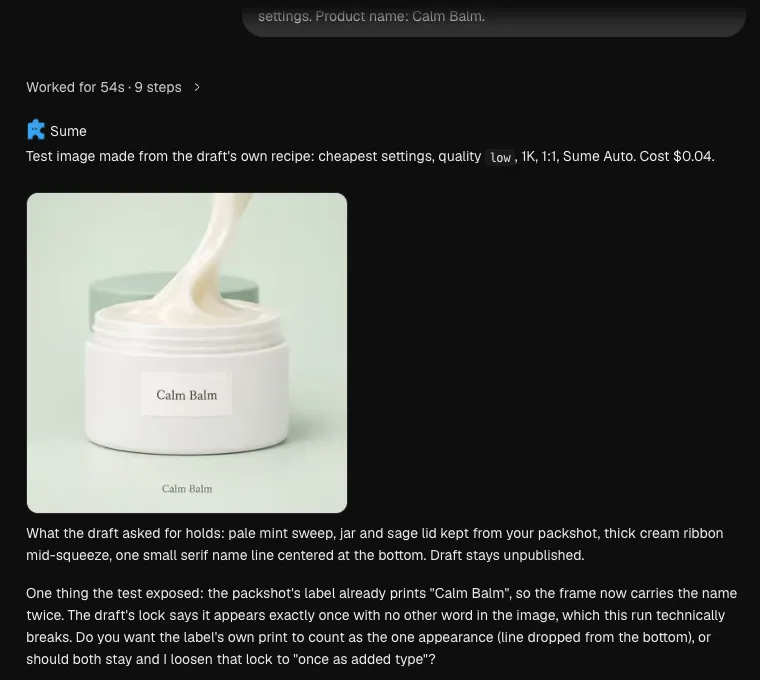
A test can catch a problem before your team ever sees it. In this one, the jar's label already printed "Calm Balm", so the new name line repeated it. The agent pointed it out and asked which way to go. One more sentence ("Let the label count; skip the bottom line when the label shows the name") fixed the draft, and the checks passed again.
Publish, versions and rollback
Who can publish: anyone who can edit your workspace's Formats, which means people with the Admin or Creator role. No admin approval is needed. People with the Member role can use Formats, but their Publish button is greyed out. The agent publishes only when you ask it to, in your own chat.
How: on the draft's Conversation tab, click Publish v2 (the number is the next version), or tell the agent "Publish it." The draft becomes the new version and every new run uses it.
Versions never change. Every publish adds a new number (v1, v2, v3 …). The History tab lists every change with who made it and when, and the selector at the top shows the published version.
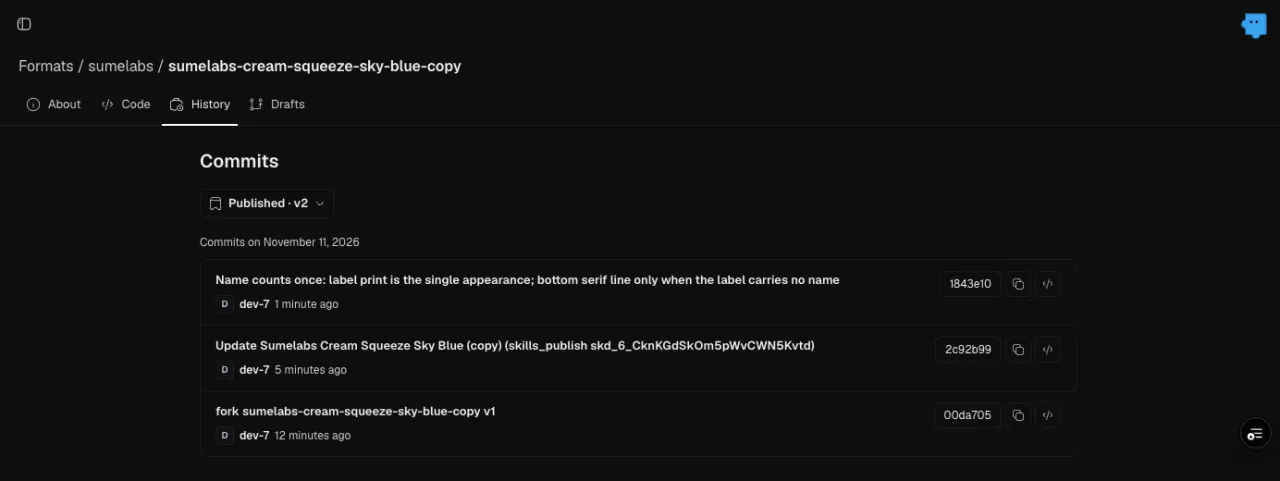
Rollback is one click. After a publish, the draft shows Published as v2 with a Roll back to v1 button (v1 being the version before). It publishes the old files again as a new version, so nothing is erased and you can roll forward again later. You can also ask the agent "Roll back to v1."
Admins hear about it. When someone else publishes or rolls back a team Format, workspace admins see it in their notifications ("By {name}" or "By the agent for {name}"). Nothing waits for them: it's a heads-up, not an approval.
Use it
In chat
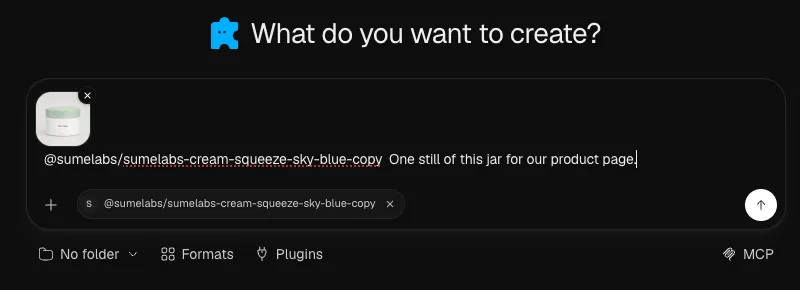
Pick the Format with Formats (or Use this format in its preview). The message box starts
with the Format's id, for example @sumelabs/sumelabs-cream-squeeze-sky-blue-copy, and the same
id shows as a chip under it. Attach the product photo, add a line of instructions and send. Every
run uses the latest published version.
From your backend (API)
A developer on your team can run the same Format with one HTTP request. Copy the Format's id
from its About tab (for example sumelabs/sumelabs-cream-squeeze-sky-blue-copy).
The answer comes back right away with the run's id, its status and a status_url. The
format part names the version that runs ("version": 2). When status is completed,
primary_output_url is the image. The example image at the top of this page came from this
request.
- Without
format_version, a run uses the latest published version. That's what you want while you are still trying things. - With
format_version: 2, the run always uses v2, even after someone publishes v3 or rolls back. Pin the version for stable production use, and move the pin on purpose when you're ready.
The Format API pages cover the full request, results, webhooks and errors.
From an AI assistant (MCP)
MCP is how an AI assistant such as Claude connects to Sume. Sume's MCP connection lists Sume's
own Formats as presets (get_presets, execute_preset) and always runs their latest version. Your team's Formats aren't in MCP; run them in chat or from
the API.
Tips and common mistakes
- One change at a time. Ask for one or two changes, look at the draft, then ask for the next. Small drafts are easy to check and easy to roll back.
- Say what must not change. "Keep the 1:1 square and the product exactly as photographed" stops the agent from touching parts you like.
- Test with a real product photo. The cheapest test image costs a few cents and finds problems no check can, like a name that is already on the label.
- Fork before you experiment with a Format your whole team relies on. Your copy is yours to break.
- Publishing changes what everyone gets. Every new run without a pinned version uses the newest version right away.
- Pin production. If an app or a script calls the Format, send
format_version, and update it only after you have checked the new version. - Don't paste keys or passwords into a request. The check refuses a file that holds a key.
FAQ
Does checking cost anything? No. The check is free. Only a test generation costs money, and the agent tells you the price.
Will my draft change runs that are happening now? No. Runs use the published version until you publish.
Can I undo a publish? Yes. Roll back to the previous version in one click. The rollback becomes a new version, and the history keeps everything.
Do I need an admin to publish? No. Anyone who can edit the workspace's Formats can publish. Admins are notified.
Will improvements to the original reach my fork? No. A fork is a separate copy from the moment you make it.
Can several people work on one Format? Yes. Each change is its own draft. If the published version moved while you worked, the check says the draft is out of date. Ask the agent to update the draft from the published version.
Troubleshooting
| What you see | What it means and what to do |
|---|---|
| The fork icon is missing | It's a Sume Format (use Recreate), or your role can't create Formats in this workspace. |
| The agent asks "publish this version now?" | Nothing is published yet. Say "Publish it", or "Don't publish yet, open it as a draft on the Format" to review it first. |
| No Drafts entry after a change | The change is still waiting in the chat. Ask the agent to open it as a draft on the Format. |
| Publish is greyed out on the draft | The note says "Publishing needs edit access to this workspace's Formats." Your role (Member) can use Formats but not publish them. Ask someone with the Admin or Creator role. |
| A check failed: "locked parts" | The change touched a part your team locked. Ask the agent to undo that part, or ask a teammate to change the lock. |
| A check failed: the draft is behind | Someone published while you worked. Ask the agent to update the draft from the published version, then check again. |
| The test result looks wrong | Tell the agent what is wrong; it changes the same draft. Nothing is published until you publish. |
| An API run uses an old version | The request pins format_version. Change the number, or leave it out to use the latest version. |