
Photo to line drawing on a transparent background with GPT Image 2.5
Turn one photo into black line art with a real alpha channel: ChatGPT Image 2.5 edit, background transparent, PNG, and a Pillow check before you trust it.
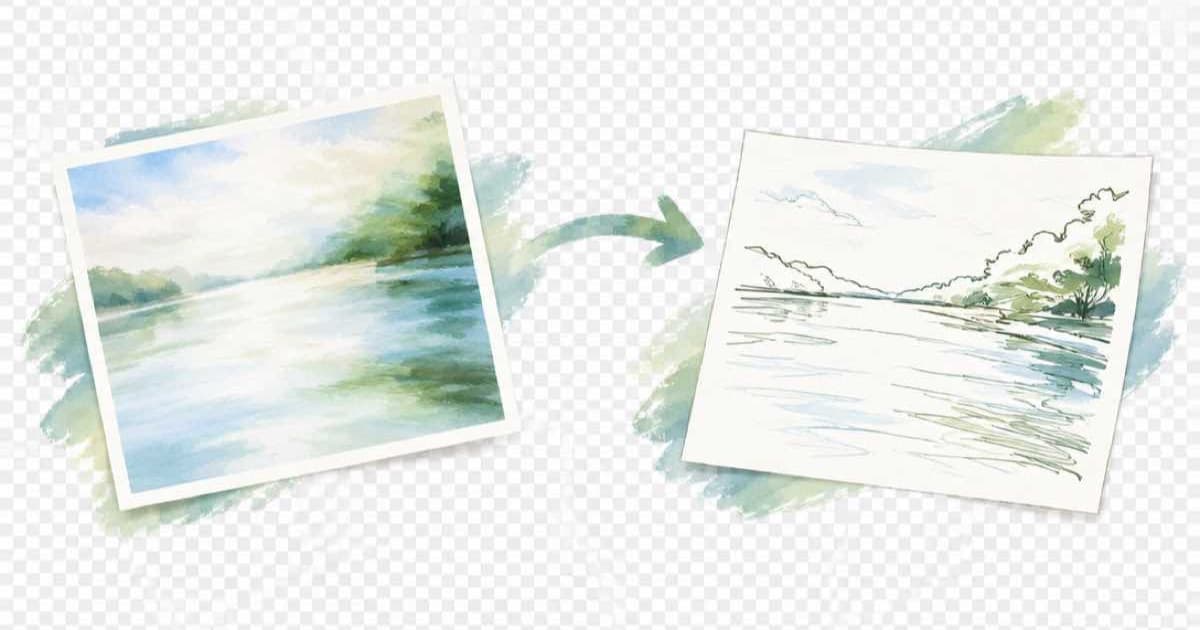
To turn a photo into a line drawing with a transparent background on Sume, send the photo as one input_references entry to openai/gpt-image-2.5 with background: "transparent", output_format: "png" and aspect_ratio: "auto", then open the result in Pillow and confirm the corners have an alpha of 0. Sume's Image API docs list background for ChatGPT Image 2.5 only, so this is the row to pick for a cut-out line drawing.
Which request settings matter?
OpenAI's image generation guide says to set background: "transparent" and use png or webp as the output format. Sume's page repeats the field values auto, transparent and opaque. For an edit, add aspect_ratio: "auto" so the drawing keeps the photo's shape; Sume's docs say that omitting the field is not the same as sending auto.
| Field | Value | Why |
|---|---|---|
model | openai/gpt-image-2.5 | The row with background on Sume |
input_references | one image_url entry | The photo; this row takes up to 16 |
background | transparent | Per OpenAI, needs png or webp output |
output_format | png | Lossless edges for line work |
aspect_ratio | auto | Match the source photo |
quality | low or medium | Sume's docs say auto reserves the max price |
What does the call look like?
The prompt does the style work. Ask for clean black outlines, no shading, no fill, and no background. The script below sends the request and checks the alpha channel of the first result; a wholly opaque file means the model ignored the transparency request and you should retry before batching.
import io
import os
import requests
from PIL import Image

key = os.environ["SUME_API_KEY"]
body = {
    "model": "openai/gpt-image-2.5",
    "prompt": "Clean black line drawing of this photo, outlines only, "
              "no shading, no fill, no background",
    "input_references": [{"type": "image_url",
        "image_url": {"url": "https://example.com/photo.jpg"}}],
    "background": "transparent",
    "output_format": "png",
    "aspect_ratio": "auto",
    "quality": "medium",
}
r = requests.post("https://api.sume.com/v1/images",
    headers={"Authorization": f"Bearer {key}"}, json=body, timeout=60)
if r.status_code != 200:
    raise SystemExit(f"{r.status_code}: {r.text[:200]}")
img = Image.open(io.BytesIO(requests.get(r.json()["data"][0]["url"]).content))
img = img.convert("RGBA")
print("corner alpha:", img.getpixel((0, 0))[3])
What if the request returns 202?
Sume waits up to 30 seconds on POST /v1/images. A slow request returns 202 with a job envelope instead of the image, and the script above exits on that. Read the result from the job endpoints described in Jobs and results, or send mode: "async" from the start for batches.
How do I know the drawing is clean?
Check the file, not the preview. A viewer often shows a checkerboard or white page whether or not the file has an alpha channel. Convert to RGBA in Pillow and read the corner pixel: an alpha of 0 means the background is transparent, and 255 means the model returned a flat image. Also open the PNG on a dark background, because stray light-gray halo pixels around the lines only show up there.
Sume bills image generation all or nothing, according to its docs: a completed generation is charged in full and a failed or cancelled one is not. A bad drawing still costs you the render, so test one photo at low before you queue a folder.
Should I use Flare or Sunburst?
Both ids take the same fields on Sume. OpenAI's guide recommends Sunburst for workflows where editing precision matters most, which is the case here because you want the photo's contours kept. Try both on one photo; the pair share the same Sume request shape, so only model changes.
Sources
Related posts
More in Use cases
- Photo to linocut print: Ideogram 4.5 edit and a 2-color threshold
A linocut look from a photo: one Ideogram 4.5 edit from $0.0375, then a Pillow threshold that makes it truly two-colour. Low, medium, high compared on Sume.
- Photo to oil painting with a style reference: Ideogram 4.5 edit
Send your photo first and a painting second to ideogram/ideogram-v4.5: image one is edited, up to 4 more guide style. Low, medium, high cost 3.75 to 27.5 cents.
- Photo to stained glass window: one Seedream 4.5 edit
Turn a photo into a stained glass window with one reference edit: Seedream 4.5 at $0.05 an image, an explicit ratio, and four takes for $0.20 on Sume.
- Photo to two-ink risograph look: Seedream 5 Lite and a color check
A risograph print uses two or three inks on paper. Ask Seedream 5 Lite for the look on Sume, then count the palette in Pillow to see whether the inks held.
Written by Sume