
Stippled AI graphics turn to gray mush when resized: a downscale test
A dotted AI graphic can lose most of its contrast when downscaled. A Pillow test of nearest, bilinear and Lanczos on a stipple, and what to request instead.
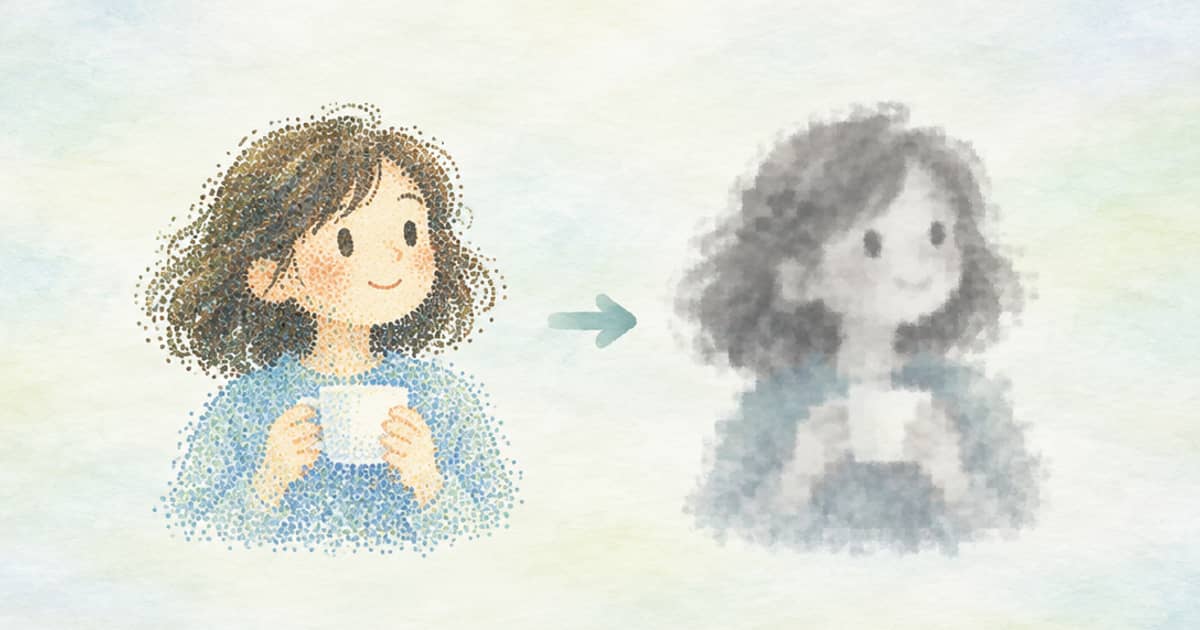
If you ask an image model for stippled, dotted or halftone minimalism at 4K and then shrink it for the web, resize with care, because a fine dot pattern loses most of its contrast in a normal downscale. In my test below, a one-pixel stipple at 2048 pixels dropped from a contrast standard deviation of 69.2 to 11.4 with bilinear and 14.6 with Lanczos, so the art turned a flat light gray.
Higher-resolution output is part of the FLUX 3 Image pitch (up to 4K, per BFL, read 2026-10-03), and the price list charges more for it. A big render is only useful if it survives the resize to the size you publish. This test tells you whether yours does.
The test
The script builds a synthetic white page with black one-pixel dots at 8 percent density, a stand-in for a stippled image, and shrinks it from 2048 to 512 pixels with three filters. It prints the standard deviation of the pixel values, which measures how much contrast is left, and how many distinct gray levels the result has. It is a synthetic test of the mechanism, not a measurement of any model's output.
import numpy as np
from PIL import Image

def stipple(size, density, seed=1):
    """White page, black one-pixel dots at the given density."""
    rng = np.random.default_rng(seed)
    a = np.full((size, size), 255, dtype=np.uint8)
    a[rng.random((size, size)) < density] = 0
    return Image.fromarray(a)

def std(im):
    return float(np.asarray(im, dtype=float).std())

src = stipple(2048, 0.08)
print("source", src.size, f"contrast std {std(src):.1f}")
for name, f in [("nearest", Image.NEAREST), ("bilinear", Image.BILINEAR), ("lanczos", Image.LANCZOS)]:
    small = src.resize((512, 512), f)
    print(f"{name:9}", f"std {std(small):.1f}", "unique levels", len(set(np.asarray(small).ravel().tolist())))
What it printed
Nearest-neighbor kept the contrast exactly (69.2) with two levels, since it just picks pixels, but it also picks a random-looking subset of dots and can alias into visible patterns on a real image. The two smoothing filters averaged each four-by-four block of dots toward the page color and flattened the image.
| Filter | Contrast (std) | What you see |
|---|---|---|
| Source 2048 px | 69.2 | Crisp dots |
| Nearest | 69.2 | Contrast kept, dots chosen by position, aliasing risk |
| Bilinear | 11.4 | Light gray haze |
| Lanczos | 14.6 | Light gray haze, slightly sharper |
What to do about it
Ask for the output size you will publish, not a bigger one. Stipple density is set in generated pixels, so a 1024 pixel render with dots two pixels wide will hold up at 1024 and look right. If you must downscale, shrink by exact integer factors after thickening the dots, or render at the final size and upscale only the final export with a tool built for it; Sume's MCP surface has image_upscale_create for upscaling.
Always view the downscaled result at 100 percent before delivery. Thumbnails hide the problem, since a viewer scaling the image down hides the same loss you are checking for.
Why it happens
A smoothing filter computes each output pixel as a weighted average of the source pixels around it. In a stipple, most of those pixels are white page and a few are black dots, so the average is a pale gray whose darkness equals the dot density. That is accurate as a mean, and it is exactly what the viewer reads as haze. Nearest-neighbor avoids averaging but throws away three quarters of the dots, so patterns can fold into a moire.
This is a property of the pattern, not of the model that drew it. Any image with a dot, hatch or grain texture at the scale of one or two pixels will behave this way, which is why print designers pick the screen size before they pick the file size.
Which Sume row to try
Vector output avoids the issue altogether. Sume's docs list Recraft V4 as WebP and text-to-image only; see the Recraft vector post for what is available beyond that. For raster work, compare file sizes and quality at the final dimensions as in the format measurement post, and check legal sizes with the size validator. The Sume Image API docs are at docs.sume.com/models/images.
Sources
Related posts
More in Developers
- Streaming transcripts: burn only final text into clip captions
MAI-Transcribe-2-Streaming returns partials in about 100 ms, then settled text. Burned-in captions need the final text. Filter it and pass it to Sume as cues.
- STT sentence segmentation: unpunctuated speech split on silence
Sume STT 1.0 segmentation mode sentence returns gapless sentence segments, splitting unpunctuated runs on silence. Options, boundary_lead_ms and caveats.
- Submit 20 music takes at once: queued is normal, queue_full is not
Sume accepts music jobs as queued while the queue has room, then returns 429 queue_full. Default accepted-job capacity by plan, from 6 on Free to 120 on Scale.
- subscribeFormatRun onCreated: save the run id, set your own key
subscribeFormatRun makes a new Idempotency-Key per call unless you pass one. Save the run id in onCreated and pass a stable key so a restart cannot double-run.
Written by Sume