
Edit one region of a large photo: crop, edit, stitch back in Pillow
Crop the part you want changed, edit it with Ideogram 4.5 on Sume, then resize and feather it back into the full-resolution photo with Pillow. Code included.
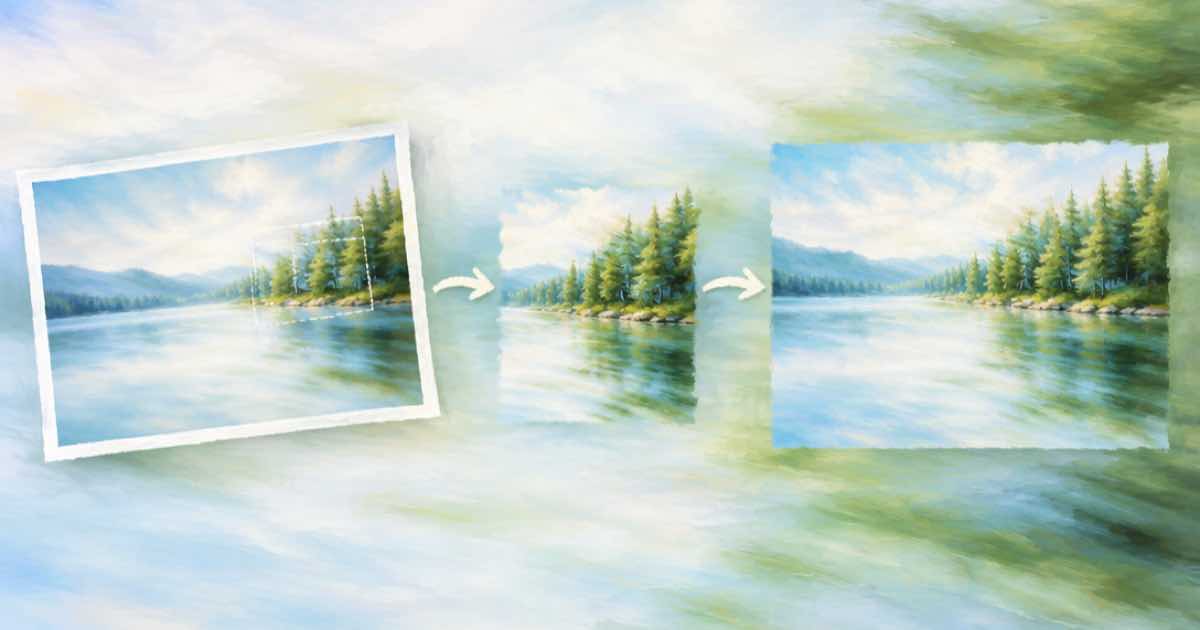
To edit one region of a large photo without sending the whole frame, cut out the region, edit the crop, and paste the result back over the original with a feathered edge. Morphic describes Ideogram 4.5 as handling large photos with its own crop-and-stitch edits; this is the same idea done on your side, so the rest of the picture is the original file, not a model output. It works with any Sume model that accepts input_references.
The steps
The key rule: only edit a crop that you can describe on its own. "Change the sign on the shop front to OPEN" works. "Change the second window from the left" does not, because the crop may not contain the first window.
- Pick a pixel box (left, top, right, bottom) a little larger than the area to change, so there is context around it.
- Save the crop as PNG, host it at a public HTTPS URL, and send it as the first
input_referencesentry. - Leave
aspect_ratioout so the result keeps the crop's shape. - Download the output, resize it to the box size, and paste it with a blurred mask.
The stitch
This function reads your original and the edited crop, resizes the crop to the box, builds a mask that is solid inside and fades over feather pixels at the edge, and pastes. It runs as written with Pillow installed.
from PIL import Image, ImageFilter

def stitch(original_path, edited_crop_path, box, out_path, feather=24):
    left, top, right, bottom = box  # pixel box you cropped from the original
    base = Image.open(original_path).convert("RGB")
    crop = Image.open(edited_crop_path).convert("RGB")
    crop = crop.resize((right - left, bottom - top), Image.LANCZOS)
    mask = Image.new("L", crop.size, 0)
    mask.paste(255, (feather, feather, crop.width - feather, crop.height - feather))
    mask = mask.filter(ImageFilter.GaussianBlur(feather / 2))
    base.paste(crop, (left, top), mask)  # the blurred edge hides the seam
    base.save(out_path)

# stitch("photo.png", "edited_crop.png", (1000, 500, 1800, 1100), "final.png")
Why this is worth the extra step
A full-frame edit returns a whole new image, and every pixel in it came from the model. The stitch means that outside your box every pixel is the original, as long as you save as PNG and not a lossy format. That is the property Flux 3 Image advertises, with unchanged pixels preserved across steps, and you get it here on any model. The trade is a visible seam if the crop's colour or light differs from the surround, which is why the box should include context and the edge should be feathered.
Keep the crop lossless. Save it as PNG before upload, since a JPEG crop adds block artefacts that the model may treat as texture and carry into the edit. Download the edited crop in PNG as well when the model offers output_format.
Size matters too. A crop of 800x600 is a small, cheap job, and the edit runs at the model's native strength on that area. Ideogram 4.5 is priced per image regardless of size, so a crop costs the same $0.0375 at low quality on Sume as a whole frame would.
Where the seam shows
For a ready check on how much of the frame changed, use the pixel diff recipe. The seam theory in more detail is in hiding the seam with a feathered composite.
| Symptom | Likely cause | Fix |
|---|---|---|
| Hard line at the box edge | Feather too small | Raise feather; widen the box |
| Colour step across the edge | Model shifted white balance | Edit a larger box; match mean colour before pasting |
| Softer texture inside the box | Crop was resized | Send the crop at its native size; avoid scaling up |
| Object cut at the edge | Box too tight | Add margin around the target |
Sources
Related posts
More in Developers
- Fade in and out on a Timeline render: output fade seconds 0 to 5
Set output.fade_in_seconds and fade_out_seconds (0 to 5 s, sum within the render length). The music bed has its own fade_out_seconds, up to 10.
- Fast-cut Shorts in Timeline: eight chained fades, then a hard cut
Timeline refuses more than 8 adjacent fades with too_many_chained_transitions. Transitions must be 1 s or less and half the shorter neighbour. How to plan cuts.
- Fix an underexposed photo: curves first, AI edit only if needed
Underexposed photo? Try Pillow autocontrast and gamma for free, then an ideogram/ideogram-v4.5 edit at $0.075 only if noise or colour needs more.
- How do I fix one sentence in finished AI narration without redoing it?
Retake just the wrong sentence with a one-cent TTS job, then splice it into the original file with a $0.01 Timeline audio concat using source_in and duration.
Written by Sume