
Homebrew beer label art with an API: the name and ABV added in code
Generate square label art on Sume with no text, then draw the beer name, style and ABV in code so every batch gets exact numbers on the same artwork.
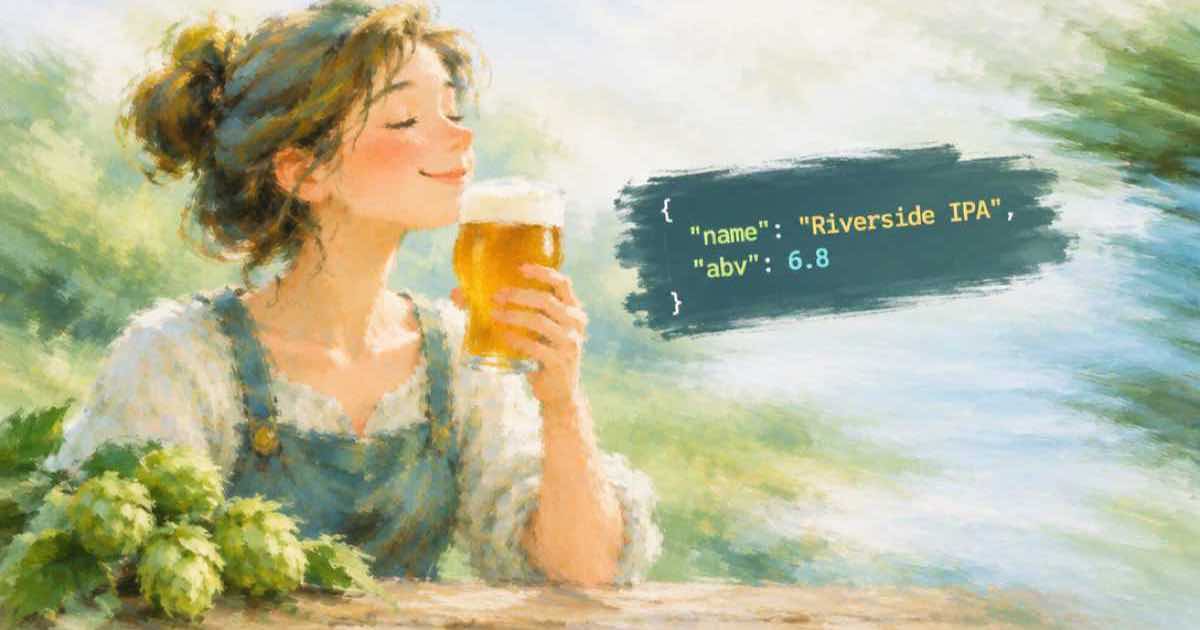
For homebrew beer label art, generate a square illustration on Sume with no text, then draw the beer name, style and ABV in code. The batch number and the alcohol percentage change each brew and must be right, so they belong in your script, and the same artwork can serve every batch of that beer.
GPT Image 2.5 can produce the illustration; fal lists it as OpenAI's default image model with natural lighting and rich textures (read 2026-10-06, fal). The Image API docs show how to choose aspect_ratio and quality. A 1:1 image is easy to crop to a wrap or a round coaster later.
Which parts change per batch
The illustration is the brand of the beer and rarely changes. The numbers and dates change on every brew. Keep them apart and the artwork cost is a one-off.
| Element | Source | Changes per batch |
|---|---|---|
| Illustration | Generated, 1:1 | No |
| Beer name | Code | No |
| Style | Code | Rarely |
| ABV | Code | Yes |
| Batch number and date | Code | Yes |
Generate once, label every batch
The script generates the illustration and writes a labelled copy for each batch in a small list. Use a bold TrueType font in production.
import io
import os
import requests
from PIL import Image, ImageDraw

r = requests.post(
    "https://api.sume.com/v1/images",
    headers={"Authorization": f"Bearer {os.environ['SUME_API_KEY']}"},
    json={
        "model": "openai/gpt-image-2.5",
        "prompt": "Retro illustration of a lighthouse on a rocky coast at "
        "dusk, warm orange and deep teal. Empty band across the bottom "
        "third. No text.",
        "aspect_ratio": "1:1",
        "quality": "medium",
    },
    timeout=60,
)
r.raise_for_status()
raw = requests.get(r.json()["data"][0]["url"], timeout=60).content
batches = [("12", "5.2%"), ("13", "5.4%")]
for batch, abv in batches:
    img = Image.open(io.BytesIO(raw)).convert("RGB")
    w, h = img.size
    d = ImageDraw.Draw(img)
    d.text((w // 8, int(h * 0.72)), "LIGHTHOUSE PALE ALE", fill="white")
    d.text((w // 8, int(h * 0.80)), f"Batch {batch}  ABV {abv}", fill="white")
    img.save(f"label-batch-{batch}.png")
Rules to check before you print
Labels for beer you give away or sell are covered by local rules, and the rules differ by country and by state. Check what your area requires before you print, because the art cannot satisfy a legal rule by itself.
- Whether a label must show alcohol content, volume or a warning.
- Whether a brewing license is needed to give or sell the beer.
- Whether claims such as a style name or a health claim are limited.
- Whether the label must use a minimum type size for required text.
Printing the labels
Print a test sheet on plain paper and wrap it round a bottle before you order a run. Check the label against the actual bottle diameter, and keep the art away from the seam where the label overlaps. Use a waterproof or varnished stock if the bottles go in ice, since ordinary paper lifts when wet.
A series of beers
If you brew several styles, keep one prompt template and swap the scene and palette. A lighthouse for the pale ale, a forest for the porter and a harbor for the lager gives a family of labels that clearly belong together. The template stays the same and the code that draws the name, style and ABV is shared, so each new beer costs only its illustration.
Name the series in your prompt notes, so a new batch of the same beer next year uses the same wording and the same look.
Cropping for a wrap label
A wrap label is wider than a square. If you need one, generate the art at a wider ratio such as 3:2 instead of cropping a square, so the scene is composed for the shape. Keep the key elements away from the overlap edge, and check the label on a real bottle before you print a full sheet.
Keep a folder per beer with the prompt, the final illustration and the script that stamps the numbers. When you brew it again, you can run the same script with a new batch row and get a label that matches the earlier ones, without trying to recreate the look from memory. Download the image and host it yourself; do not rely on a generation URL staying available forever.
Take the ABV from your own measurements, not from the recipe. Store the batch table in a file under version control so each printed label can be traced to a row. For the ratio choice and other sizes, see Image API aspect ratios and custom sizes.
Sources
Related posts
More in Use cases
- Insert a sponsor read into a podcast: TTS plus one audio concat
Generate the ad read with Sume TTS, then join it into the episode at the second you choose with one Timeline audio concat: sample-exact, $0.01 per join.
- Instagram Live ad clip: burn an offer line with caption cues
Add a timed offer line to a Live replay clip with POST /v1/video-captions and cues, no speech needed. Sume bills $0.20 per clip up to 60 seconds.
- Instagram Live Ads promo: make a 9:16 teaser clip with Sume
Instagram Live Ads started a general rollout on 2026-09-29. Make the 9:16 teaser that sends people to the stream with POST /v1/videos, 3 to 10 seconds.
- Kajabi lesson video from a 16:9 Sume avatar clip: what fits
Kajabi takes MP4 up to 4 GB and recommends 16:9. A 16:9 Sume avatar clip of up to 60 seconds is a lesson intro or recap. The numbers, and where it stops.
Written by Sume